

GitHub pinned repositories are capped at six — repositories and gists combined. That's the hard number, it hasn't moved in years, and GitHub's docs put it in one line: "Select up to six repositories and gists, combined." Go to your profile, click Customize your pins, tick up to six items, drag them into order, hit Save pins.
The whole GitHub pin repo flow takes thirty seconds. The reason you're reading this is everything the docs don't say — why the repo you spent six months contributing to won't appear in the list, whether you can pin something you don't own, what an org can pin, and what to do when six slots genuinely aren't enough. Those questions dominate the forums precisely because the official page never answers them.
How the GitHub Pin Repo Flow Works#
To pin repositories GitHub-side, the click path is exactly this:
Click your profile picture (top right) → Your profile.
In the Pinned section, click Customize your pins. If you've never pinned anything, GitHub shows a Popular repositories section instead, with the same link.
A dialog opens with two filters — Repositories and Gists. Search or scroll, then tick up to six items total across both.
Drag the grabber icon on each row to reorder. Position matters — see below.
Click Save pins.
The change is live immediately. There's no publish step and no cache to wait out.
Why your contributed repo won't show up#
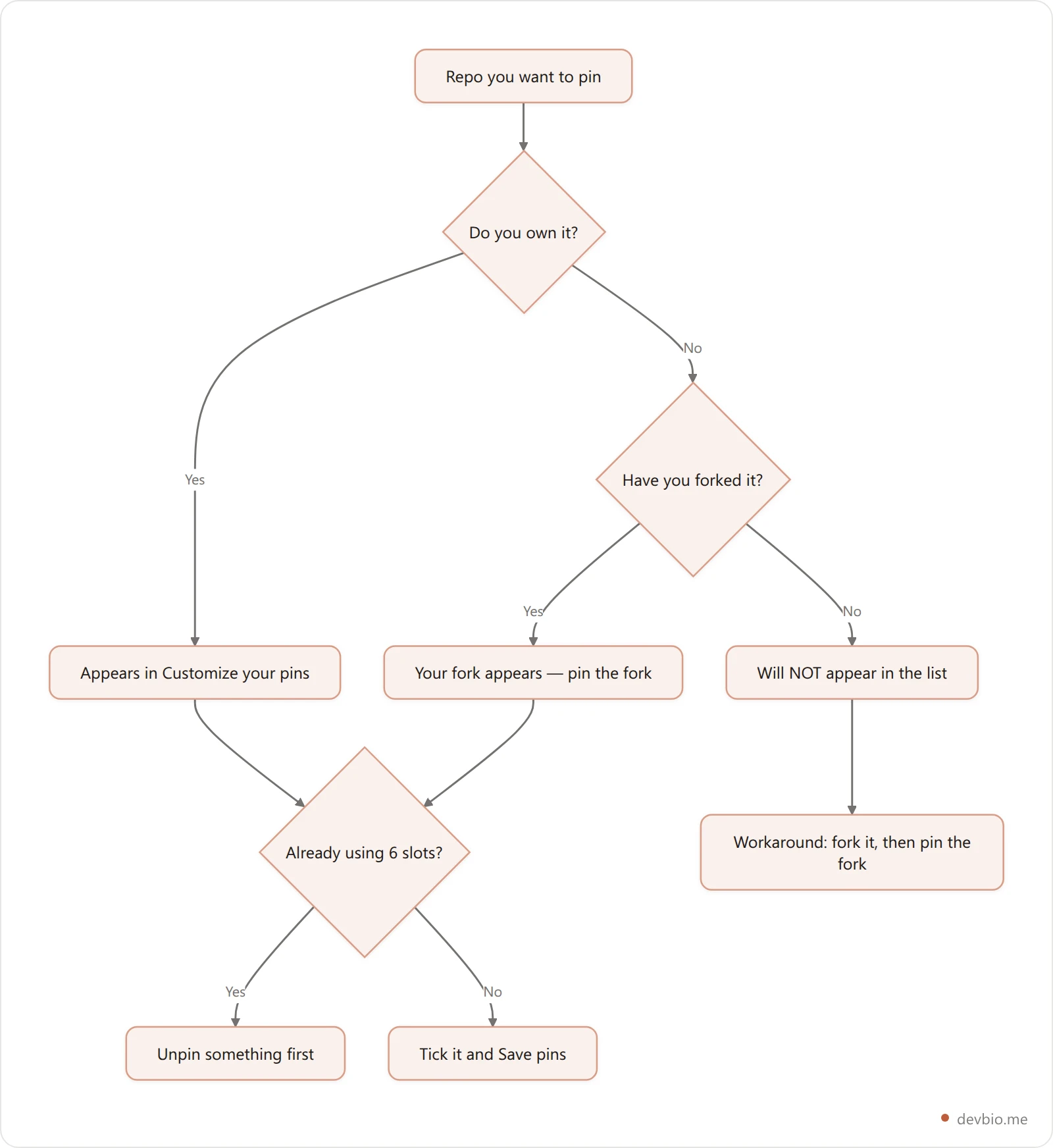
This is the single most common complaint, and the answer is blunt: you can only pin repositories you own or have forked. Contributions to someone else's repo — even hundreds of merged pull requests — never make that repo eligible for your pins.
Developers hit this constantly. A GitHub community discussion titled "Unable to Pin a Public Repository I Contributed To" exists for exactly this reason, and it ranks on page one because GitHub's own documentation doesn't cover the case at all.
The workaround is ugly but it works: fork the repository, then pin your fork. The card will read yourname/project with a "forked from original/project" line underneath. It's honest — anyone can see it's a fork — but it does get the project onto your profile.
The real cost here is that pins reward ownership, not impact. If your best work is upstream contributions to projects you don't own, your pins structurally cannot show it. That's worth knowing before you judge your own profile by them. Building a case for contribution work needs a different surface entirely — we covered that in Open Source Portfolio: Show Your GitHub Impact Beyond the README.
What a pinned card actually shows#
Each pin renders a small card. Here's the complete list of what it displays — and what it leaves out.
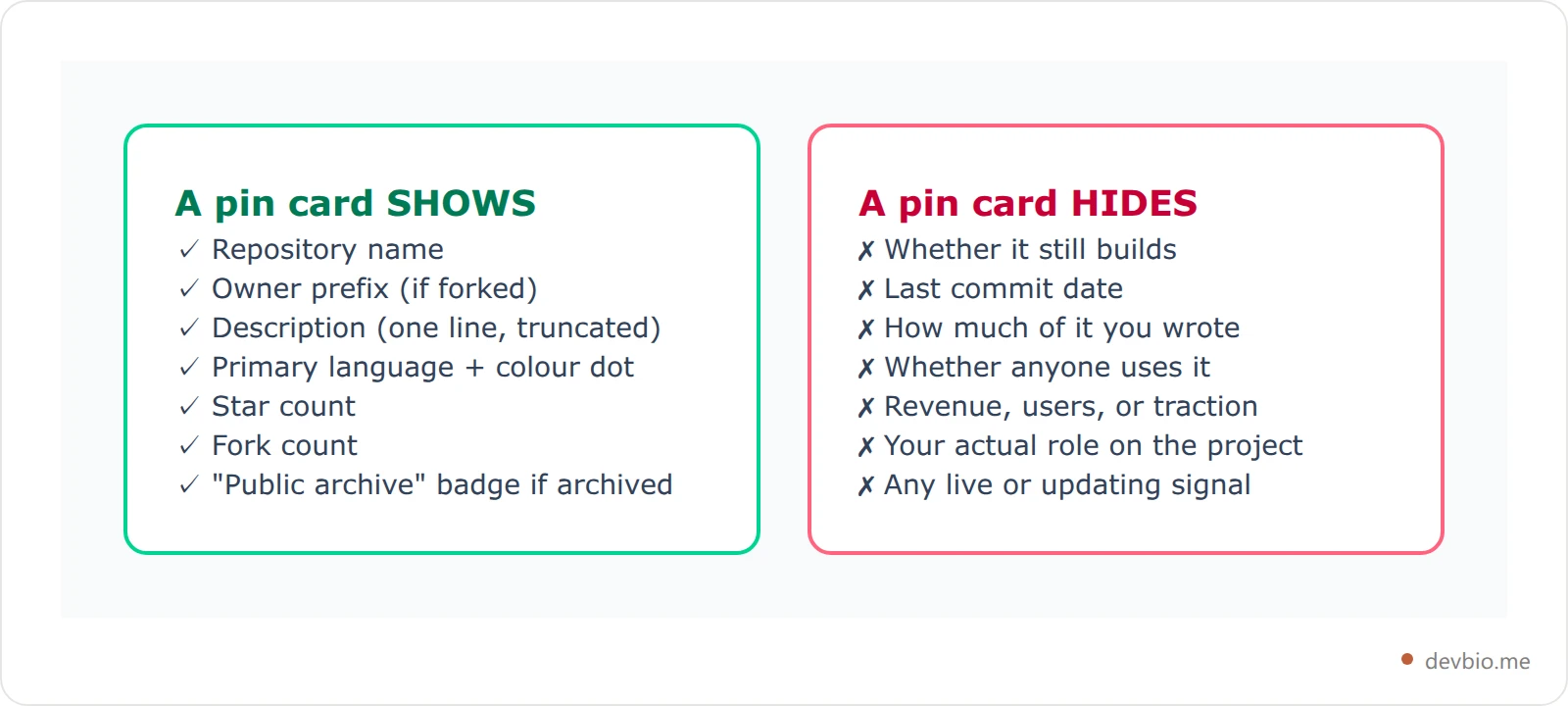
That right-hand column is the whole problem with treating pins as a portfolio. A repo you abandoned in 2023 with 400 stars looks better on your profile than the thing you shipped last month that makes money. If that ranking is backwards for your work, show the live numbers instead. Stars are lifetime-cumulative and never decay; a pin card has no concept of "still alive."
The six-slot cap, and why it hasn't moved#
The GitHub pinned repos limit is real, enforced, and unlikely to move. The community request to allow more than six pins has been open for years, has collected dozens of reactions, and has never received an official GitHub response. Treat six as permanent.
Users in that thread make a fair point that gets overlooked: the pinned section is the only place on GitHub where you control repository order persistently. Everywhere else sorts by push date or stars. That makes those six slots more valuable than they look — they're your only editorial control over the profile.
How to allocate six slots#
Six slots is genuinely enough if you stop treating them as "my top 6 by stars" and start treating them as an argument. A pattern that works:

Each slot does one job:
Flagship — the thing you most want to be known for. Slot 1, top left. It gets read first and often alone.
Depth — something that proves you can hold a hard problem. A parser, a scheduler, an optimiser.
Range — a different language or layer, so you don't read as a one-stack developer.
Useful tool — something with real users, however small. Downloads beat stars as a credibility signal.
Active work — proof you're still building. Something pushed to this month.
Profile README — pin
yourname/yournameif the README is strong. It's a repo, so it's pinnable.
Order matters more than most people realise. Pins render left to right, three per row on desktop and stacked in a single column on mobile — where a large share of profile views happen. On a phone, slot 6 is a long scroll from slot 1. Put your best work first, always.
Pinning for organisations#
Organisations can pin too, and the rules differ slightly. From an org profile, an owner (or a member with the right permissions) can pin repositories the organisation owns — GitHub documents this under customising your organisation's profile. Same six-item ceiling.
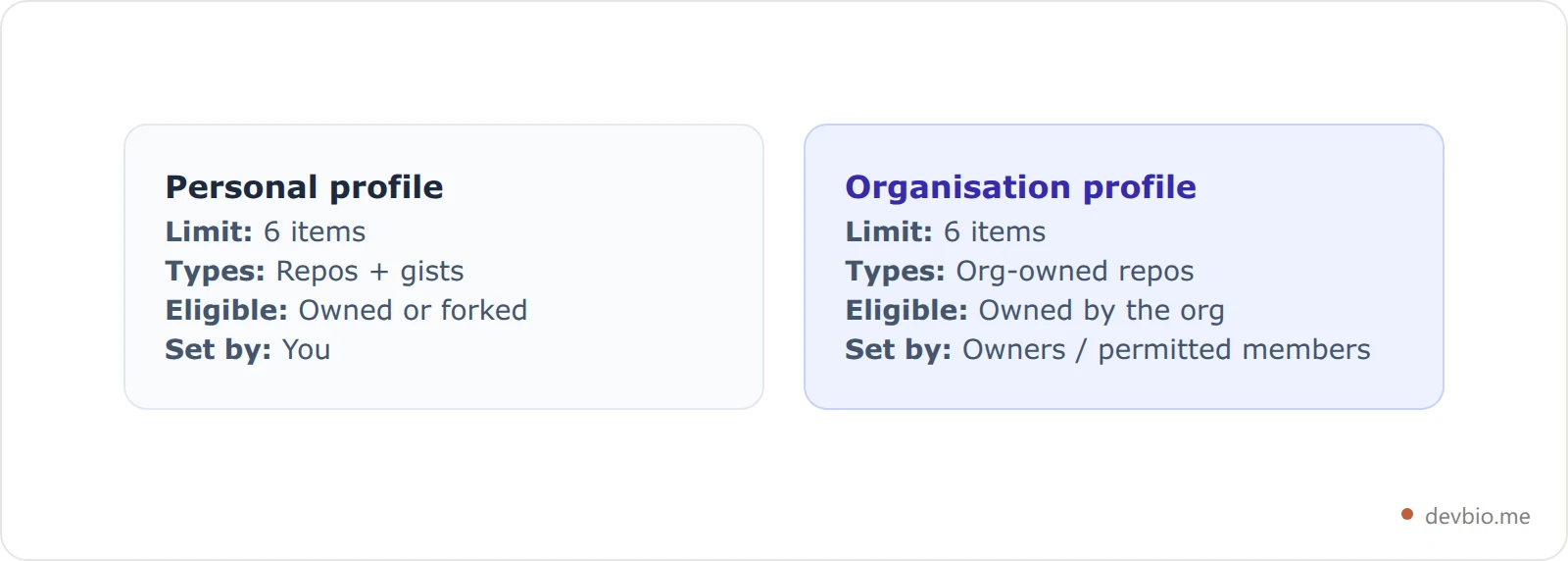
The practical difference: org pins are a team editorial decision, and they go stale faster than personal ones because nobody owns them. If you run an org, put a calendar reminder on it quarterly. A pinned repo that's been archived for a year is a bad look on a company profile.
Can you pin private repos, gists, and archived repos?#
Three GitHub pin repo questions the docs skip, answered:
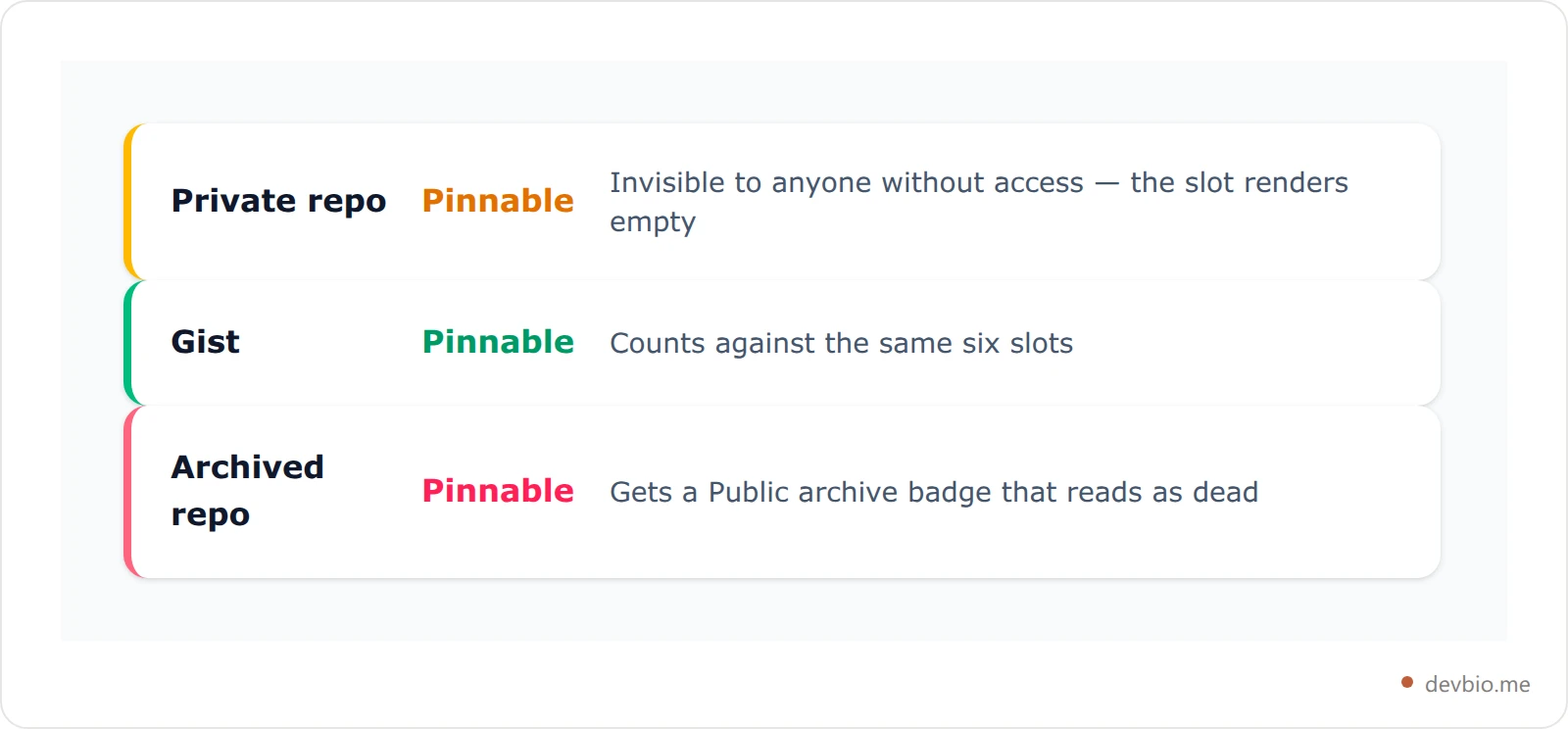
Private repositories — yes, they'll appear in your pin list, but only people who already have access can see the card. To everyone else, that slot renders as nothing. You've spent a slot on an invisible pin. Don't.
Gists — yes, and they count against the same six. A genuinely useful gist (a config, a script people copy) can be worth a slot; a three-line snippet isn't. Our guide to GitHub gists covers how the pin button works from a gist's own page, and why "secret" doesn't mean private.
Archived repositories — yes, and the card gets a Public archive badge. That badge is honest but it reads as "dead" to a recruiter skimming. Only pin an archive if the project's story is the point.
What to do when six isn't enough#
If you're at six and still cutting things, you've outgrown what pins are for. Pins are a curation tool, not a portfolio. The usual escalation path, in order of effort:
Use your profile README. A repo named after your username renders above your pins and takes unlimited markdown — tables, links, badges, sections. This is the standard overflow valve, and we've written the full playbook in GitHub Profile README: What to Include in 2026.
Add stats cards. Tools like github-readme-stats give you language breakdowns and commit counts in the README. They have real caveats around private-repo data — GitHub README Stats: What They Show (and What They Miss) covers where those numbers mislead.
Move the proof off GitHub entirely. Pins can't show revenue, live status, or what you actually did. If those are your strongest signals, GitHub structurally can't display them.
That third point is where a dedicated bio page earns its place. On DevBio, the projects component takes an unlimited list — each with a URL, image, tags, and metrics — and the GitHub stats component pulls your commits, stars, top languages, and the last 12 weeks of contributions on a sync rather than a screenshot. Connect a payment gateway and a project card can carry live MRR next to the star count. It's the column GitHub's pin card leaves blank.
Six slots aren't your whole story
Pins show stars and a language dot. Show live GitHub stats, real project metrics, and an ATS-ready resume from the same data — free.
Build your bioKeeping GitHub pinned repositories honest over time#
GitHub pinned repositories rot silently. Nobody gets a notification when a pinned project stops building. A twice-yearly pass is enough:
Does the first GitHub profile pinned card still match what you want to be hired for?
Is anything pinned that hasn't been touched in over a year, without a reason?
Did you ship something better since the last pass?
Does the mobile order still lead with your strongest work?
That last one catches people. If you want your GitHub profile to do real hiring work, the order of six cards on a phone screen is doing more of that job than most of your README.
FAQ#
How many GitHub pinned repositories can you have?#
Six — and that's repositories and gists combined, not six of each. GitHub's documentation states it as "up to six repositories and gists, combined." The limit is enforced in the UI; you can't tick a seventh item until you untick something else.
Can you pin a repository you don't own?#
Not directly. You can only pin repositories you own or have forked, so contributions to someone else's project won't appear in your pin list no matter how many commits you've merged. The workaround is to fork the repository and pin your fork instead.
Do pinned repositories show private repos to visitors?#
No. A private repo can be pinned, but only people who already have access to it will see the card. Every other visitor sees nothing in that slot, which means you've effectively wasted one of your six pins on empty space.
Does pinning affect your GitHub search ranking?#
No. Pins are purely a profile display setting. They don't influence GitHub search results, repository trending, or how your repos rank anywhere on the platform — they only change what visitors see first on your profile page.
Can GitHub organizations pin repositories?#
Yes. Organisation profiles support the same six-item pinned section, set by owners or members with sufficient permissions, and limited to repositories the organisation owns. Org pins tend to go stale faster than personal ones, so review them quarterly.
What happens to a pinned repository if you archive it?#
It stays pinned and the card gains a "Public archive" badge. The repo remains visible and readable, but the badge signals to visitors that the project is no longer maintained — worth considering before leaving an archived project in a limited slot.
Key Takeaways#
The GitHub pin repo cap is six items, repos and gists combined, and it hasn't moved in years.
You can only pin what you own or forked — contributions to someone else's project never qualify.
Fork the repository and pin the fork when the work you want shown isn't yours.
A pin card shows a name, a language dot and a star count that never decays; it can't show that a project is still alive.
Order for mobile, where the six cards stack into one column and slot six is a long scroll from slot one.
Give each slot a distinct job, and review the whole set twice a year.
If the strongest thing about your work is that it's alive — shipping, earning, in use — that's a story GitHub's six slots were never built to tell. Give it somewhere to live.


