

You paste a snippet into a README, hit preview, and the first line has turned into a giant heading. Or the code renders fine but every token is flat gray. Or you try to show a teammate how to write a fence, and your example swallows the rest of the page. Three different symptoms, one root cause: the fence isn't doing what you think it's doing.
The short answer: a markdown code block is text wrapped in a line of three backticks above and below it. Put a language name directly after the opening fence to turn on syntax highlighting. If the code you're showing contains backtick fences of its own, make the outer fence longer — four backticks instead of three.
That's the whole rule. The rest of this page is the edge cases that break it.
On this page
Markdown Code Block: Fenced vs Indented#
Markdown has two ways to mark code, and only one of them is worth using in 2026.
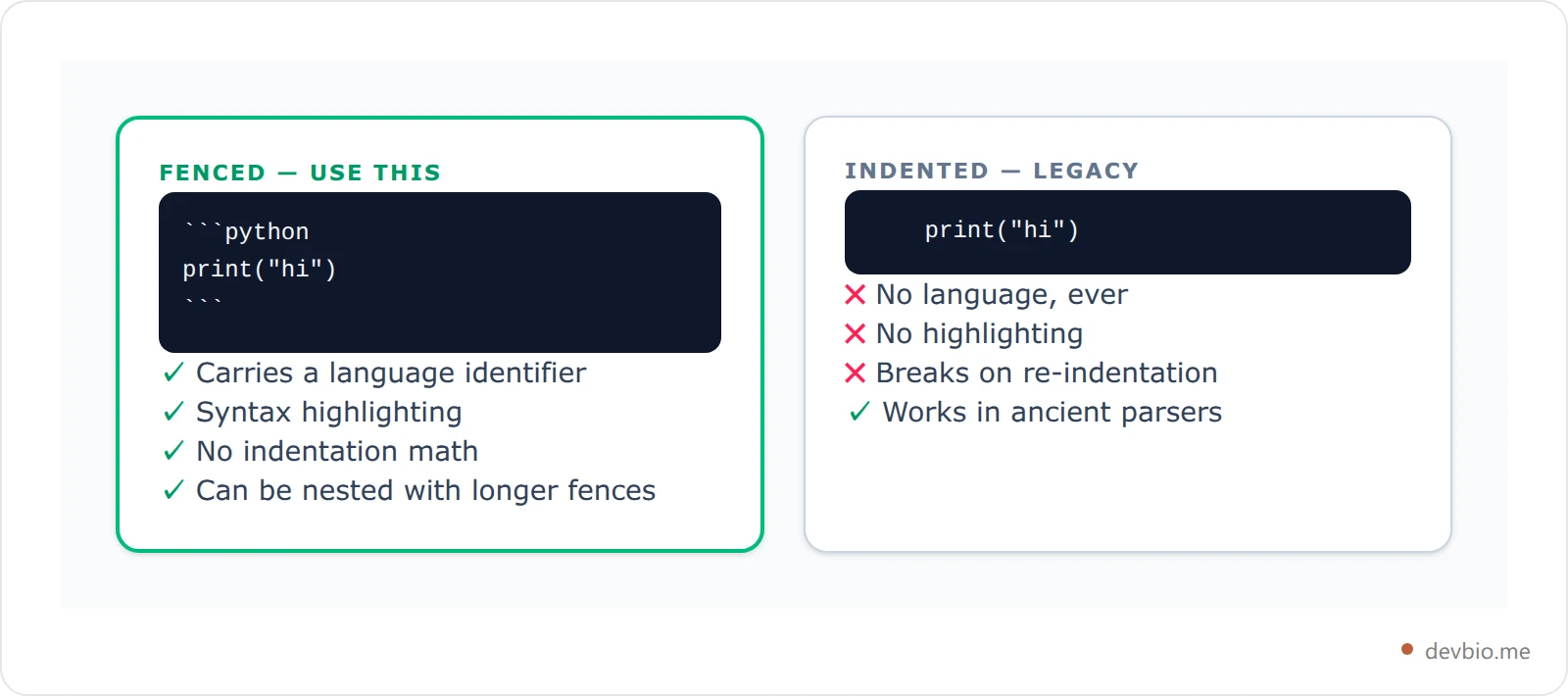
An indented code block is any run of lines indented by four spaces, with a blank line before it. It's the original syntax from 2004, it still works everywhere, and it has one fatal flaw: there's nowhere to say what language the code is. You get monospace text and nothing else.
A fenced code block wraps the code in a delimiter line instead — three or more backticks, or three or more tildes. The line that opens the fence can carry an info string, which is where the language goes. This is what you want almost always.
Here's the indented style — four spaces of leading whitespace, no delimiters, and nowhere to name the language:
    def greet(name):
        return f"Hello, {name}"
The fenced equivalent sits in the card below: three backticks, the word python pressed against the opening fence, your code, then three backticks to close. Tilde fences deserve a mention too — ~~~ opens and closes exactly the same way, and because the delimiter isn't made of backticks, a tilde fence can hold a backtick fence as content with no escaping at all.
One habit worth adopting: GitHub's own documentation recommends leaving a blank line before and after a code block. It isn't required by every parser, but several of them — and most linters — treat a fence glued to the paragraph above as ambiguous. The same blank-line discipline that keeps a markdown line break from collapsing keeps your fences intact.
Adding a Language for Syntax Highlighting#
The info string is everything after the opening backticks on that same line. There's no space required and no colon:
Something like ts, python, or bash, pressed straight against the backticks with nothing in between.
Markdown syntax highlighting on GitHub isn't magic — it's Linguist, the same library that decides what language your repository is written in. The valid keywords live in Linguist's languages.yml, and each language lists its aliases there. That file is the actual source of truth, not a blog post's cheat sheet.
Three practical consequences:
Aliases are real.
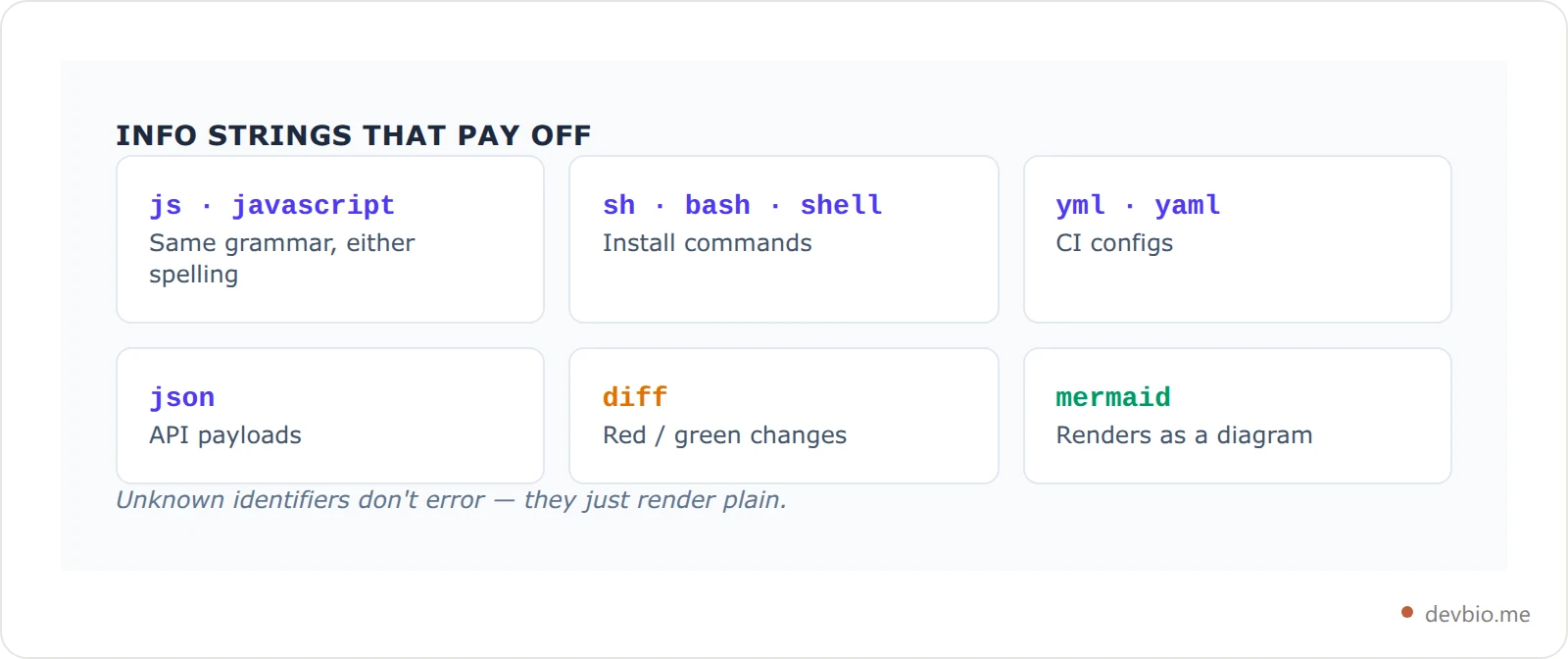
jsandjavascript,pyandpython,sh,bashandshell,ymlandyamlall resolve to the same grammar. Pick one and stay consistent.An unknown identifier fails silently. Type
pythonnwhen you meantpythonand you don't get an error — you get an unhighlighted block. If your code looks gray, check the spelling of the language first.Case matters in one place. GitHub's docs specifically recommend lower-case identifiers when the block also has to render on a GitHub Pages site, because Jekyll's highlighter is stricter than GitHub.com's.
Some info strings aren't languages at all. GitHub renders mermaid, geojson, topojson, and ASCII stl fences as live diagrams instead of code, which is how flowcharts get into a README without an image file.
Building a profile README and want the fences right without memorising any of this? The free README builder assembles the markdown for you.
How to Nest a Code Block Inside a Code Block#
This is the query that sends people to forum threads, because the intuitive fix — escaping the inner backticks — doesn't work. Markdown has no backslash escape that survives inside a code block. The actual mechanism is fence length.
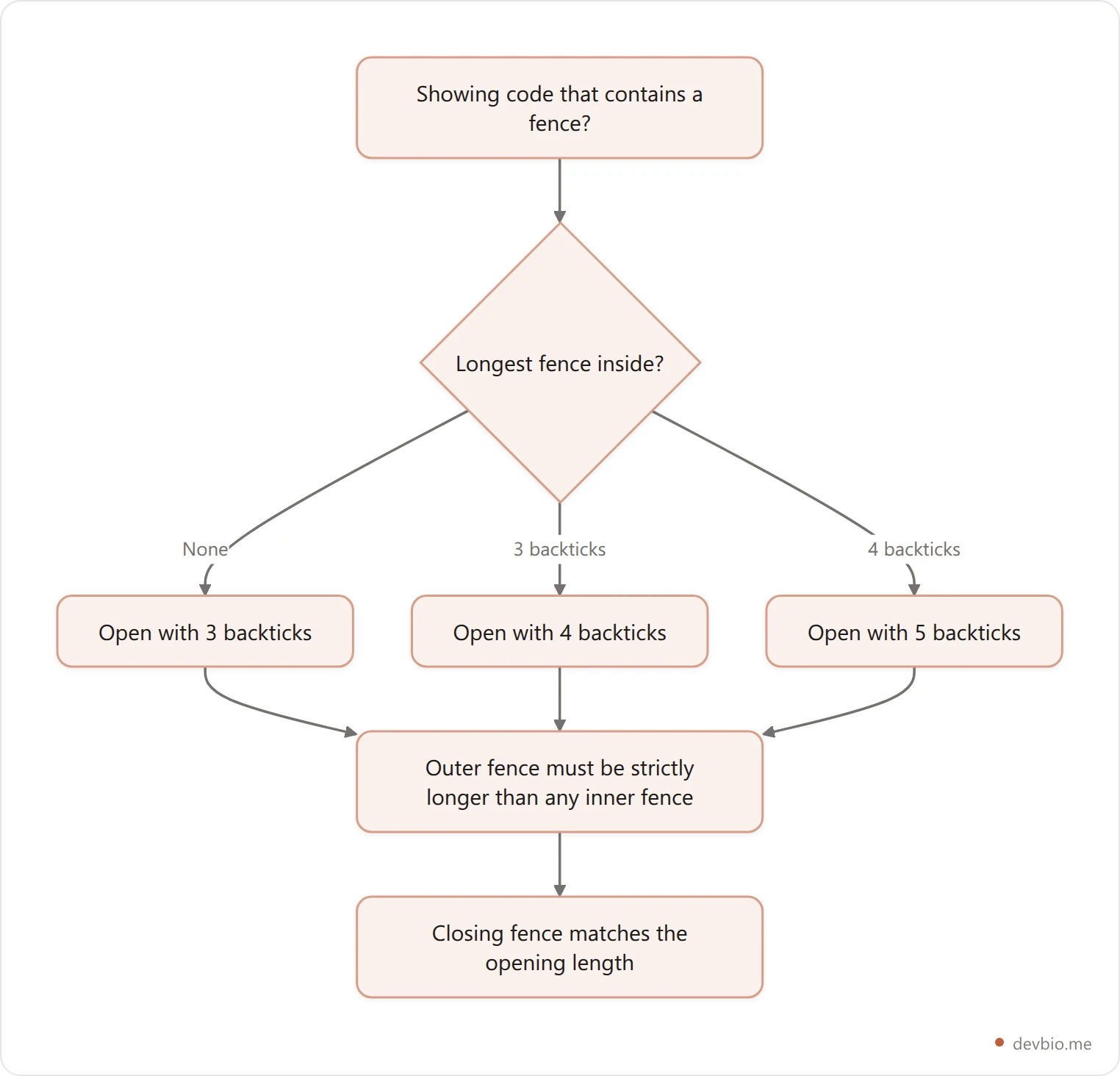
The rule from the CommonMark spec: a fence of N backticks is closed by the next line containing N or more backticks. So a three-backtick block ends at the first three-backtick line it meets. To show a three-backtick fence as content, the container has to be four backticks. GitHub's documentation says the same thing in one line: to display triple backticks, wrap them in quadruple backticks.
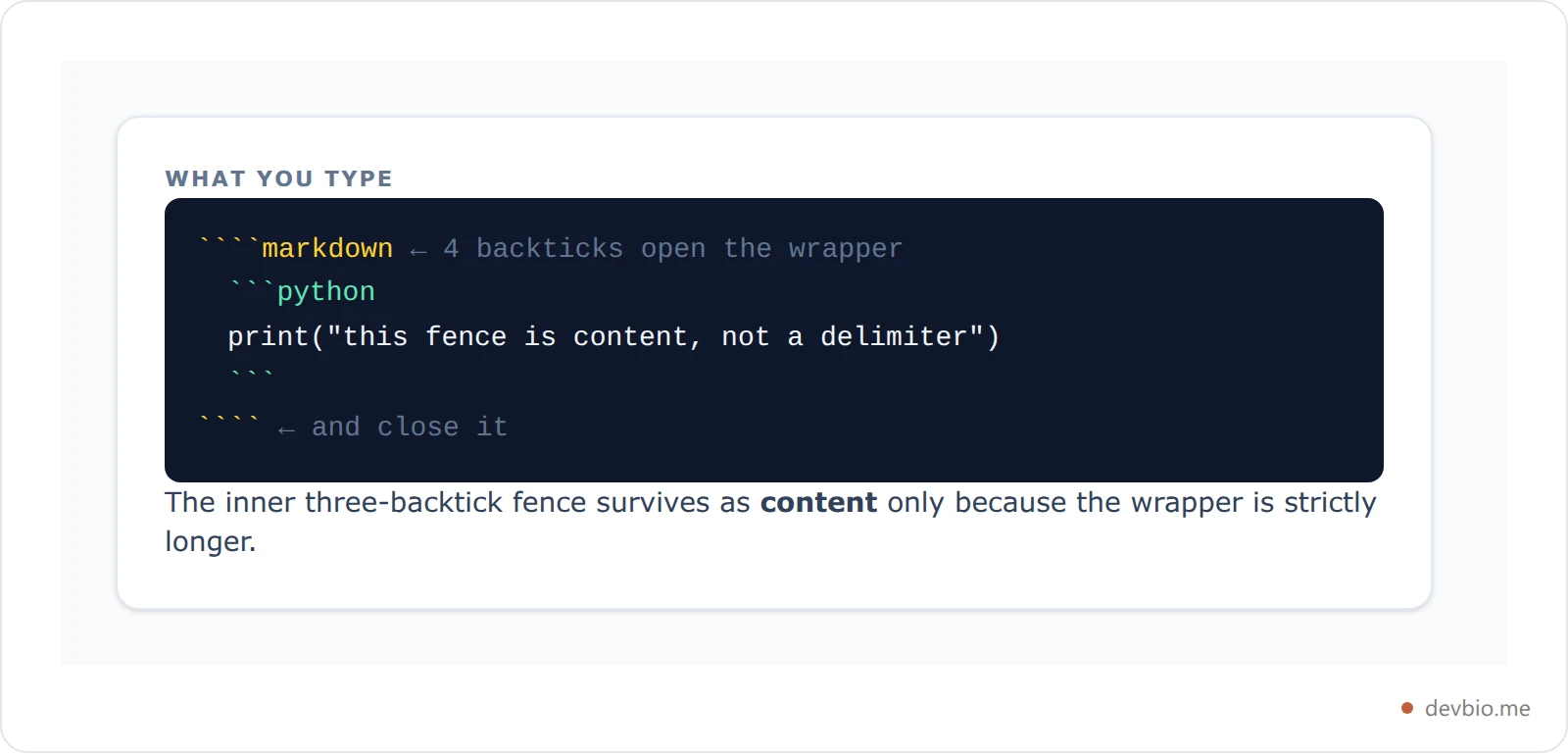
Need to show four backticks? Use five. The only constraint is that the outer fence is strictly longer than any fence inside it.
There's a second reason a nested code block matters, and it bites tool authors rather than writers. A lot of software extracts fenced content with a regular expression, and the lazy version is non-greedy — it matches from the first fence to the first closing fence it finds. DevBio's own model-output parser does exactly this when it unwraps a JSON response, using a non-greedy [\s\S]+? between fences. That's correct for the job it does, and it's precisely why a payload containing its own fence would truncate. Any parser that isn't counting backticks is guessing.
If your nested example renders as two broken halves, count the backticks before you blame the renderer. We hit exactly this while building our own generator — which is why the README builder does the counting for you.
Diff Blocks: Showing Added and Removed Lines#
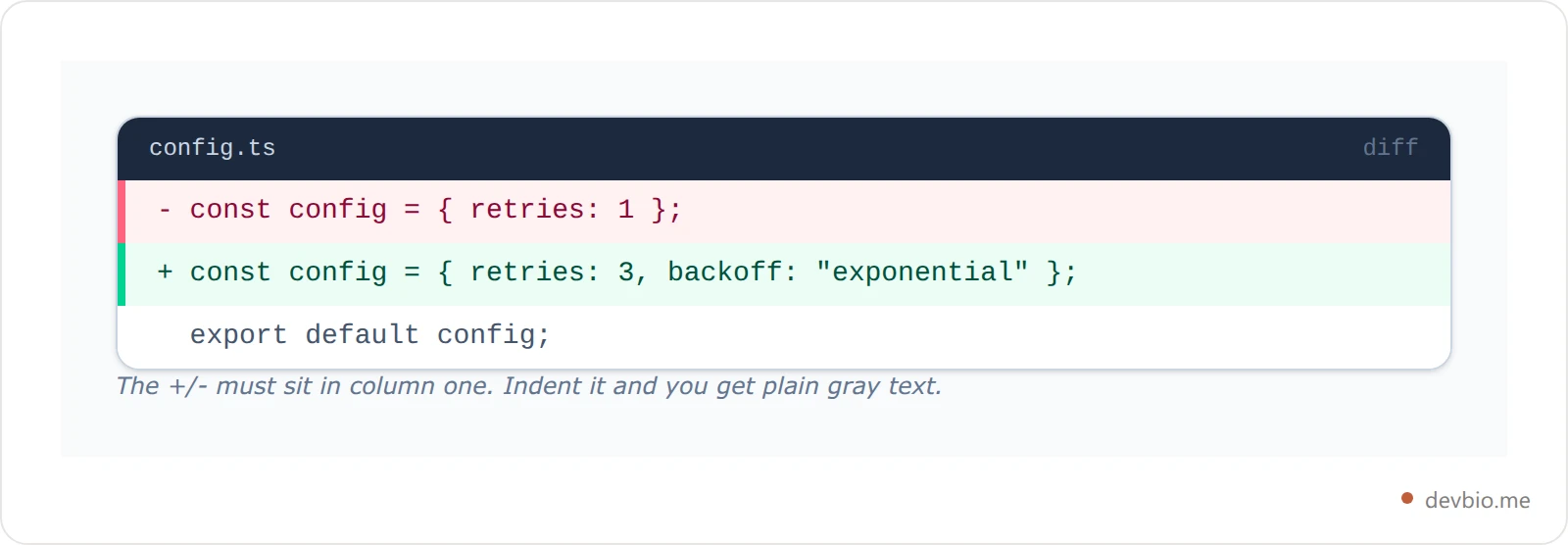
Setting the info string to diff gives you a markdown diff block: lines beginning with + render green, lines beginning with - render red. It's the cleanest way to show a change in a README or a pull request description without screenshotting your editor.
The source is an ordinary fence whose info string is diff, with every changed line prefixed by a + or a - sitting in column one — the mockup below shows what that renders as.
Two constraints people trip on:
The marker must be the first character on the line. Indent it and the highlighting disappears.
You give up language highlighting. A
difffence highlights diff syntax, not the underlying language, so the code itself renders plain. You're trading token colour for change colour — worth it for two or three lines, rarely worth it for twenty.
Code Blocks Inside Lists, Tables, and Blockquotes#
Fences behave differently once they're nested in another block, and this is where most real README bugs live.
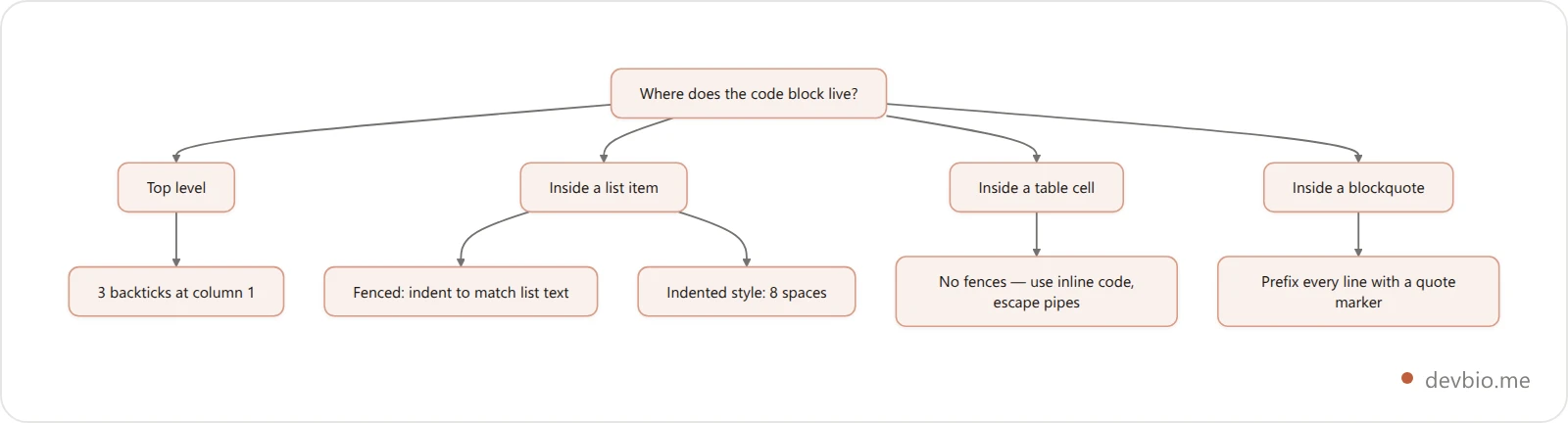
Inside a list, a fenced code block has to be indented to line up with the list item's text — usually two to four spaces, depending on your marker. Get it wrong and the fence breaks out of the list, resetting the numbering. GitHub's docs add a sharper rule for the older style: to preserve formatting inside a list, indent non-fenced code blocks by eight spaces, not four. Four spaces inside a list item is just the list's own indentation.
Inside a table, you can't use a fenced code block at all. Pipe tables are line-based, so a multi-line fence has nowhere to live. Use inline code spans in the cell instead, and escape any literal pipe as \| so it doesn't split the column. The same limit blocks task lists there: a markdown checkbox needs a real list item, which a table cell can't hold, so - [ ] in a cell renders as literal brackets.
Inside a blockquote, prefix every line of the fence — opening, code, and closing — with >. Miss the closing line and the quote runs to the end of the document. The indented style is worse here: the block quote marker counts the > and its following space, so an indented code block inside a quote needs five spaces after the >, not four. Four leaves you with an ordinary paragraph. That marker arithmetic is one of several reasons a markdown blockquote eats the next line when you least expect it.
The same containment logic governs markdown horizontal lines, which is why a stray --- under text becomes a heading rather than a rule.
Where Code Blocks Break Outside GitHub#
A fence that renders perfectly on GitHub is not portable. Where your markdown lands decides what survives.
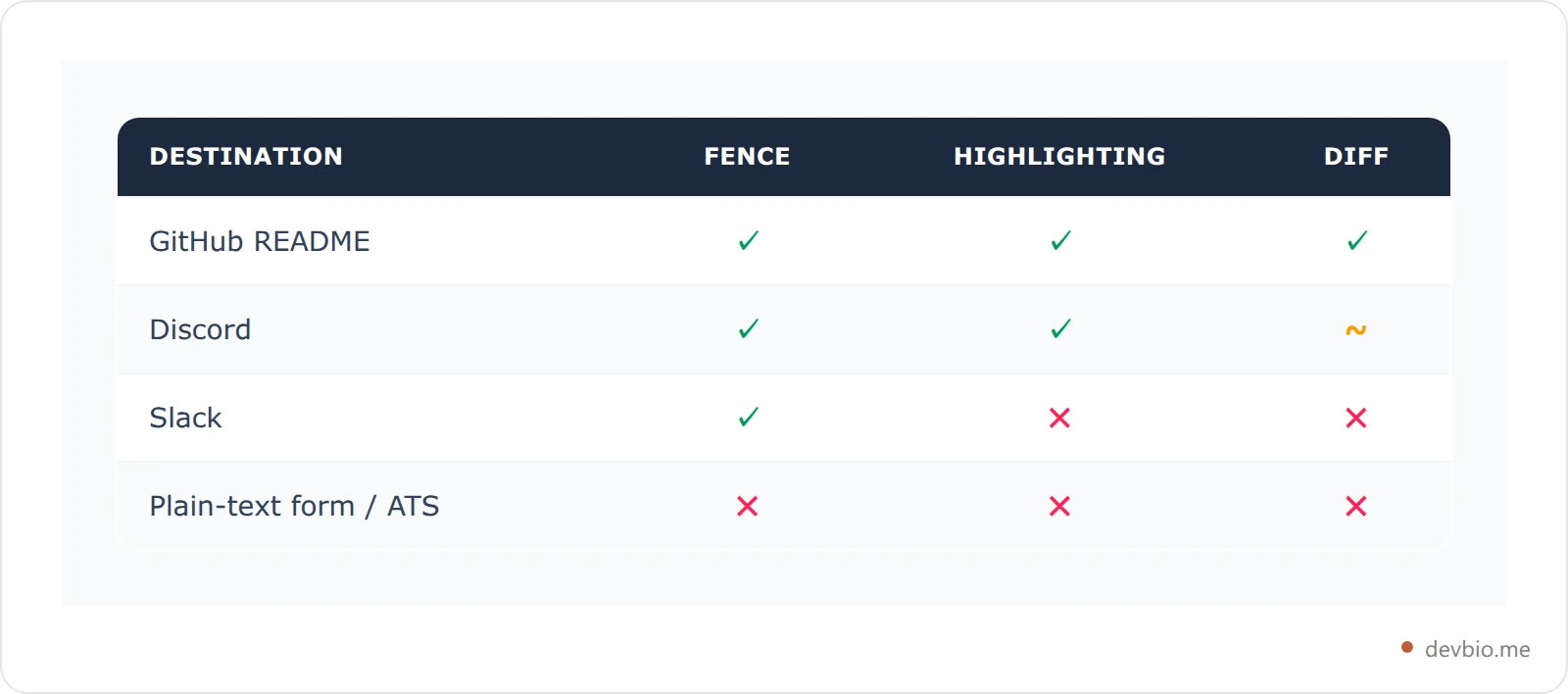
Fenced code blocks are an extension, not core markdown. They're standard in CommonMark and GitHub Flavored Markdown, but the original 2004 Markdown spec only had indented blocks. Very old parsers will render your backticks literally.
Chat apps take the fence, not always the language. Slack and Discord both accept triple backticks for a block; Discord applies syntax highlighting from the language identifier, Slack renders it monospace regardless.
Plain-text destinations strip everything. Paste a README section into a job application field or an applicant tracking system and the backticks arrive as literal characters. This is the same failure mode covered in markdown color text — the syntax isn't wrong, the destination just has no renderer.
Highlighters disagree on obscure languages. Linguist's alias list is GitHub's; GitLab, Bitbucket, and static site generators each ship their own grammar set.
The safe subset is small and reliable: triple backticks, a lower-case common language identifier, blank lines either side. Everything past that, test where it will actually be read. If you'd rather not hand-tune any of this, DevBio's README builder emits that safe subset by default.
Code Blocks in Your Profile README and Bio#
Profile READMEs are where fences meet user-supplied text, and that combination has a sharp edge: a single stray backtick in a tagline can open a code span that never closes, turning the rest of the line into monospace.
Tools that generate markdown from a form have to defend against this. DevBio's README builder escapes user-supplied strings before they reach the template — backticks, asterisks, underscores, brackets and hyphens all get backslash-prefixed, and newlines inside a field collapse to a single space so a pasted paragraph can't break out into its own block. The assembled file then collapses any run of three or more newlines down to two, which keeps the blank lines around each section intact rather than deleting them. That's the practical reason a generated README renders predictably: nothing a user types can become structure.
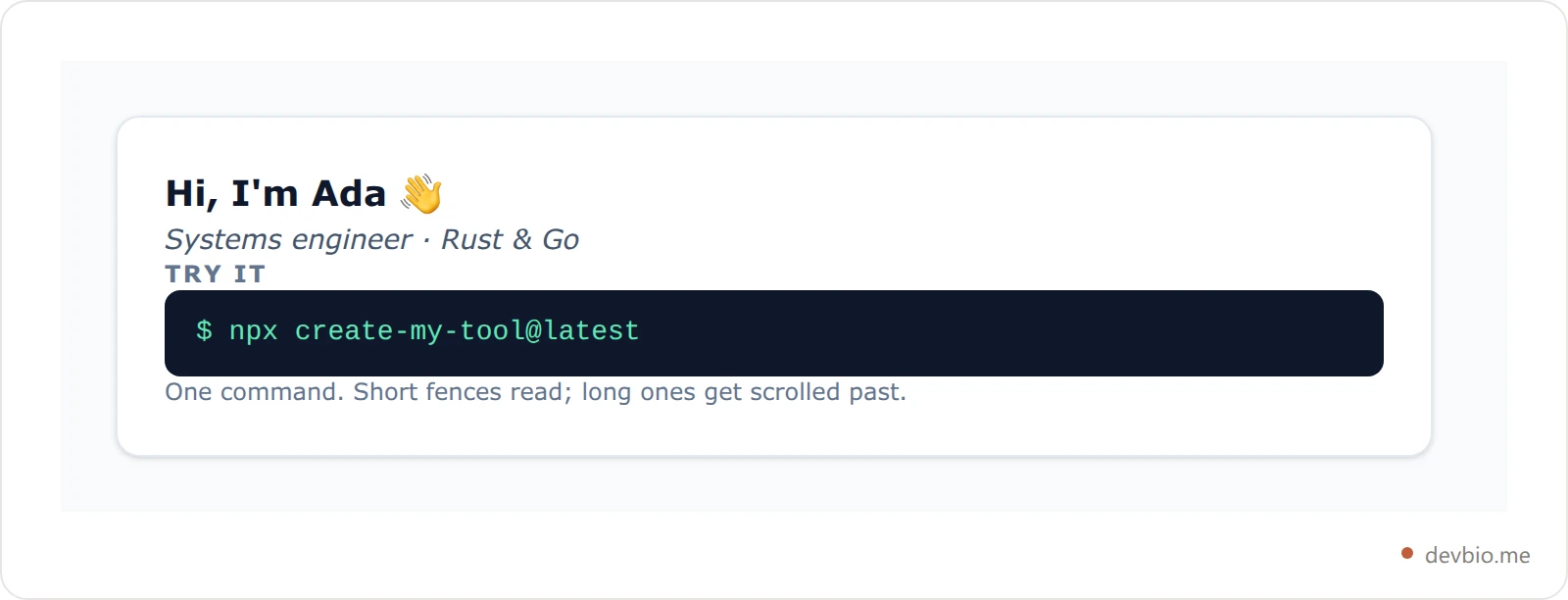
For a profile README specifically, keep fences short. One install command or a three-line usage example earns its space; a forty-line dump doesn't. The profile README best practices guide covers what belongs above the fold, and the README generator walks through building one from scratch.
Put your code where people already look
A devbio page carries your projects, stack and live GitHub proof on one link — and the free README builder writes the markdown fences for you.
Build your README freeThat literal-content rule cuts both ways. Put an HTML comment inside a fence and it stops hiding anything — one of the four reasons a markdown comment shows up on the page instead of staying quietly out of sight.
Images have the opposite problem. A fence keeps your code exactly as you typed it, but markdown gives you no way to set an image's dimensions at all — see markdown image size for what each platform accepts instead.
Headings have a third quirk worth knowing if you ever put inline code in one. A heading written as `## The --force flag generates the anchor #the---force-flag` — three hyphens — because the two dashes survive as characters while the spaces on either side of the code span each become a hyphen. That arithmetic is why hand-written section links quietly fail, and building a markdown table of contents walks through the rest of the rules.
Frequently Asked Questions#
How do I write a code block in markdown?#
Put three backticks on their own line, your code beneath, then three more backticks on a line below. Add a language name right after the opening backticks — like python or js — for syntax highlighting. Leave a blank line above and below the block so surrounding parsers read it cleanly.
How do I show backticks inside a code block?#
Make the outer fence longer than the inner one. Three backticks of content need a four-backtick wrapper; four need five. Backslash escapes don't work inside code blocks, so fence length is the only mechanism. Tilde fences are an alternative, since ~~~ ignores backticks entirely.
Why isn't my markdown syntax highlighting working?#
Usually a misspelled or unsupported language identifier — those fail silently and render plain instead of throwing an error. Check the spelling against Linguist's languages.yml, use a lower-case alias, and make sure the identifier sits directly against the opening backticks with no space between them.
What's the difference between a code block and inline code?#
A fenced code block is a standalone element for multiple lines and can carry a language. Inline code uses single backticks inside a sentence, like npm install, for a command or variable name. Use inline code for anything shorter than a full line.
Can I put a code block inside a table?#
No. Pipe tables are parsed line by line, so a multi-line fence can't live in a cell. Use an inline code span instead, and escape any literal pipe character as \| so it doesn't get read as a column separator. For real code, put the block below the table.
A fenced code block also works inside a <details> toggle, which is the usual way to hide a long config file or stack trace in a README — provided you leave a blank line after the summary tag. That one rule is covered in the Markdown collapsible section guide.
Key Takeaways#
A markdown code block is three backticks above and below your code; a fenced code block beats the four-space indented style because only the fence can carry a language.
The language identifier drives markdown syntax highlighting through Linguist — misspell it and you get plain text with no error.
To nest a code block, make the outer fence strictly longer: four backticks around three, five around four.
A markdown diff block colours
+and-lines but drops language highlighting, and the marker must sit in column one.Inside a list, indent fences to the list text; non-fenced blocks need eight spaces. Tables can't hold fences at all.
Fences are a CommonMark extension, not core markdown — test the destination before assuming they survive.


